
Introduction
I've recently been looking into more structured Git workflows: writing commit messages that follow Conventional Commits, managing version numbers with Semantic Versioning, and so on. I spent quite a bit of time browsing well-known open-source projects on GitHub, learning from their commit histories, PRs, changelogs, and release notes to work out how to build an efficient, consistent workflow.
After some trial and error, I started putting together a few concrete steps I could use in future projects:
- Use an interactive prompt to help write commit messages that follow the convention.
- Add a Git hook to check commit messages automatically.
- Generate a changelog from the structured commit history.
While trying this out, I looked into quite a few tools. One thing caught my eye: lots of open-source projects use emoji in their commit messages. They're easy to scan and, honestly, pretty fun. A little digging led me to a convention called Gitmoji, so I decided to explore how to work it into the same workflow.
There's quite a bit to cover, so I've split these three stages into three posts. Each one goes through the tools, setup, and results both with and without Gitmoji.
Conventional Commits
Why Standardize Commit Messages?
Have you ever opened a Git log and found a wall of “Fix bug,” “Update,” and “Change”? Those vague, repetitive messages tell you almost nothing about what changed, let alone what might be affected.
To me, a good commit message does more than record a change. It's part of how a team collaborates and manages a project. Clear, consistent messages help everyone understand changes quickly. A structured format also lets tools generate changelogs and bump version numbers automatically.
That's the idea behind Conventional Commits. It provides a simple, practical format, with fixed labels to describe the type of change: feat for a new feature, for example, or fix for a bug fix.
If you'd like to learn more about Conventional Commits, take a look at my earlier post: A Practical Guide to Conventional Commits: Writing Clear Commit Messages.
Commitizen: A Helping Hand for Consistent Commits
Standardizing commit messages sounds sensible, but following the format can still feel like a chore. Do I really have to type all that out by hand for every commit?
That's where Commitizen, the main tool in this post, comes in. It helps you write structured commit messages through interactive prompts. When you're ready to commit, it walks you through a series of questions, so you don't have to remember every formatting detail. Below, I'll document how I installed and configured Commitizen. I'll also show how to add Gitmoji prefixes to give the messages a bit more personality 😁
Before we set up Commitizen with Gitmoji, though, let's take a closer look at Gitmoji itself 🧐
An Introduction to Gitmoji
Gitmoji is an emoji convention for commit messages. It assigns semantic shortcodes, or names, to emoji, which tools can convert into symbols to make the type of change visible at a glance. For example:
- ✨ feat: A sparkle marks a new feature.
- 🐛 fix: A little bug makes a bug fix immediately recognizable.
- 📝 docs: A note icon signals a documentation update.
- ⚡️ perf: A lightning bolt highlights a performance improvement.
Here are some common Gitmoji:
| Emoji | Name | Purpose |
|---|---|---|
| ✨ | :sparkles: | New features or major improvements |
| 🐛 | :bug: | Bug fixes |
| 📝 | :memo: | Documentation updates or additional explanations |
| 💄 | :lipstick: | Code style improvements, such as formatting or whitespace |
| ♻️ | :recycle: | Refactoring without functional changes |
| ⚡️ | :zap: | Performance improvements |
| ✅ | :white_check_mark: | Adding or fixing tests |
Git handles version control, not formatting or syntax conversion, so it won't turn these names into emoji automatically. To insert emoji in commit messages, you need a tool. For example:
- gitmoji-cli lets you select and insert emoji interactively.
- cz-gitmoji or cz-customizable can insert Gitmoji through a Commitizen configuration.
Gitmoji is fun, but it won't suit every team. A couple of things to consider:
- Setup cost: Extra tools and conventions can feel like too much overhead for a lightweight project or a team moving quickly.
- Team culture: Some teams prefer a more formal text style and may find emoji too informal.
For that reason, I'll show the setup both with and without Gitmoji, so you can choose what fits your team.
Choosing a Tool: Comparing Commitizen Adapters
What Is a Commitizen Adapter?
Commitizen is a framework. To make it work, you install an adapter that defines the commit message rules and interactive prompts. There are several adapters, each with features for different needs. Here are three common choices:
| Adapter | Features | Pros | Cons |
|---|---|---|---|
| cz-conventional-changelog | 1. Mature and widely used in the Commitizen community. 2. Based entirely on Conventional Commits. | 1. Works with almost no configuration. 2. Follows the widely adopted Angular convention. 3. Default messages pass @commitlint/config-conventional. | 1. No custom prompts. 2. No direct Gitmoji support. |
| @commitlint/cz-commitlint | 1. The official Commitizen adapter from Commitlint. 2. Generates messages from commitlint.config.js to keep the rules in sync. | 1. Integrates with Commitlint for strong validation. 2. Extensive configuration options for stricter message checks. | 1. More configuration. 2. No Gitmoji support. |
| cz-customizable | Full control over prompt text and behavior. | 1. Suits teams with custom conventions, especially Gitmoji. 2. Supports Chinese and other languages. 3. Accommodates unusual commit requirements. | 1. Requires a manually written configuration and a little more learning. 2. The team needs to maintain documentation for its conventions. |
Which Adapter Fits Your Team?
-
If you don't need Gitmoji:
- Getting started: Use cz-conventional-changelog. It's a straightforward way to generate messages compatible with Conventional Changelog quickly.
- More advanced needs: Use @commitlint/cz-commitlint. You'll also need a ruleset such as @commitlint/config-conventional, but it gives you more flexibility when integrating with Commitlint. You can add custom rules and keep the generated messages aligned with validation. It's a good fit for projects with their own conventions.
Both adapters are based on Angular's commit message convention, so the prompts follow very similar rules. If you don't need custom rules, I'd recommend cz-conventional-changelog for its simpler setup.
-
If you need Gitmoji:
- I'd strongly recommend cz-customizable. It makes it easy to integrate Gitmoji and tailor prompts to your team.
Installing and Configuring Commitizen
Without Gitmoji (1): cz-conventional-changelog
-
Install the dependencies:
npm install --save-dev commitizen cz-conventional-changelog -
Configure Commitizen:
-
Add the following to the project's
package.json:{"scripts": {"commit": "cz"},"config": {"commitizen": {"path": "cz-conventional-changelog"}}}- The
configfield holds project settings. Itscommitizen.pathpoints to thecz-conventional-changelogadapter. - Run
npm run committo start an interactive commit.
- The
-
-
Try it out:
-
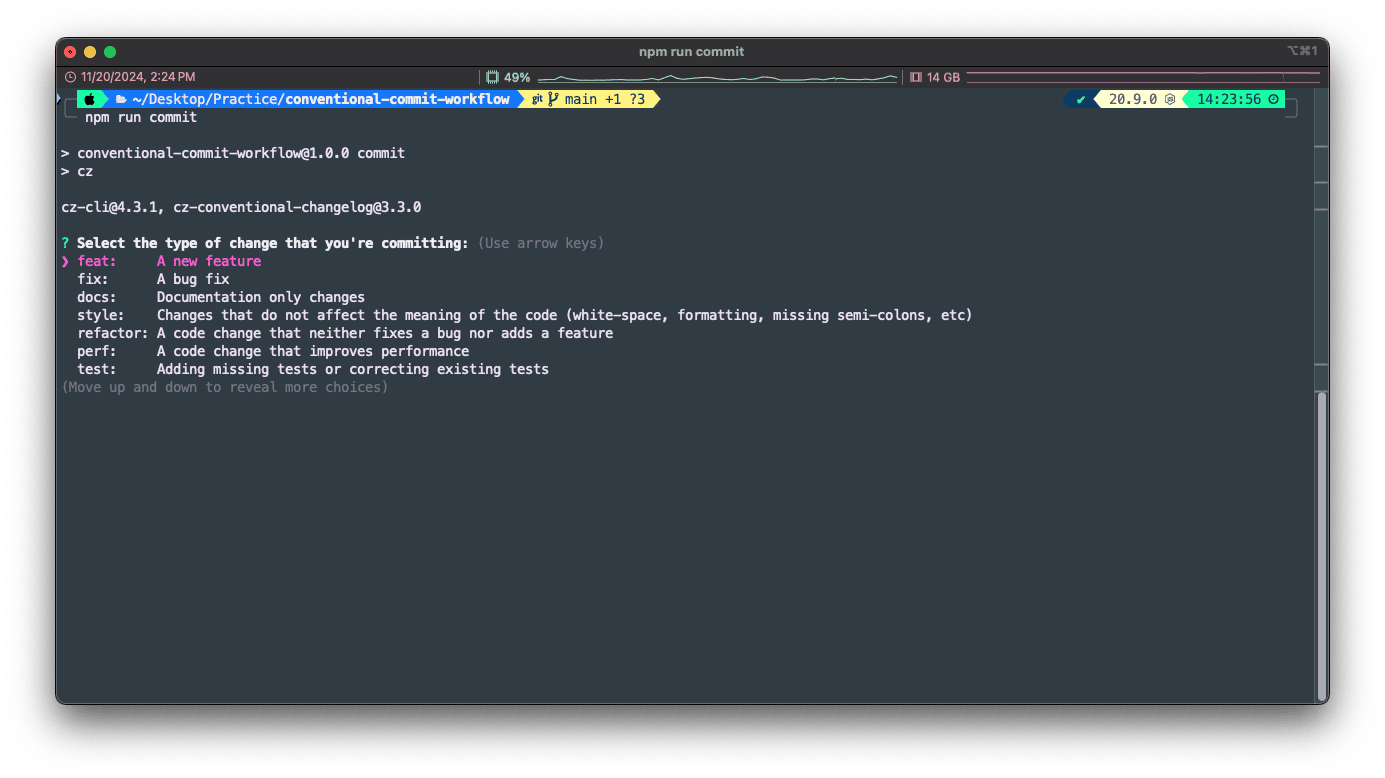
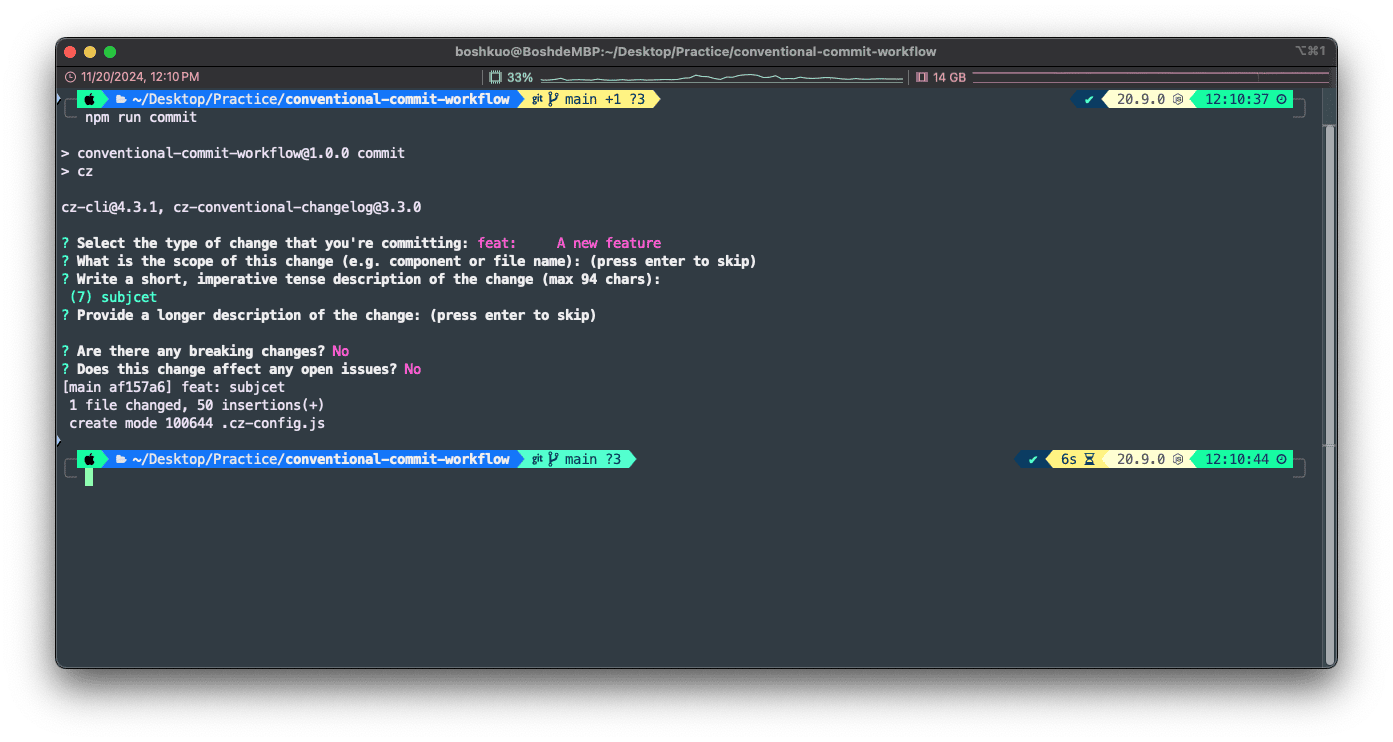
Start the interactive prompt with:
npm run commit -
Here's what the prompt looks like:
-
Without Gitmoji (2): @commitlint/cz-commitlint + @commitlint/config-conventional
-
Install the dependencies:
npm install --save-dev commitizen @commitlint/cz-commitlint @commitlint/config-conventional- @commitlint/cz-commitlint: The Commitizen adapter, which uses the settings in
commitlint.config.js. - @commitlint/config-conventional: The default ruleset to configure in
commitlint.config.js.
- @commitlint/cz-commitlint: The Commitizen adapter, which uses the settings in
-
Configure Commitizen:
-
Add the following to
package.json:{"scripts": {"commit": "cz"},"config": {"commitizen": {"path": "@commitlint/cz-commitlint"}}}
-
-
Configure Commitlint:
-
Create
commitlint.config.jsin the project root and extend@commitlint/config-conventional:module.exports = {extends: ['@commitlint/config-conventional'],};
-
-
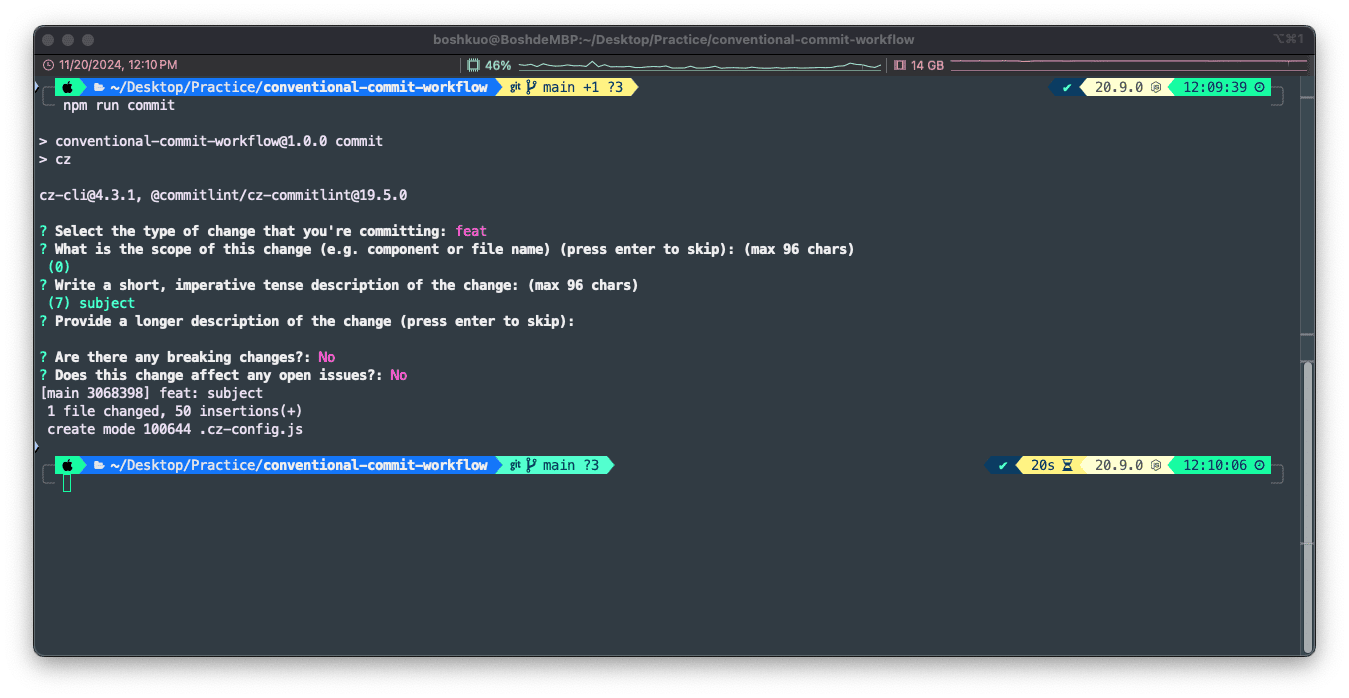
Try it out:
-
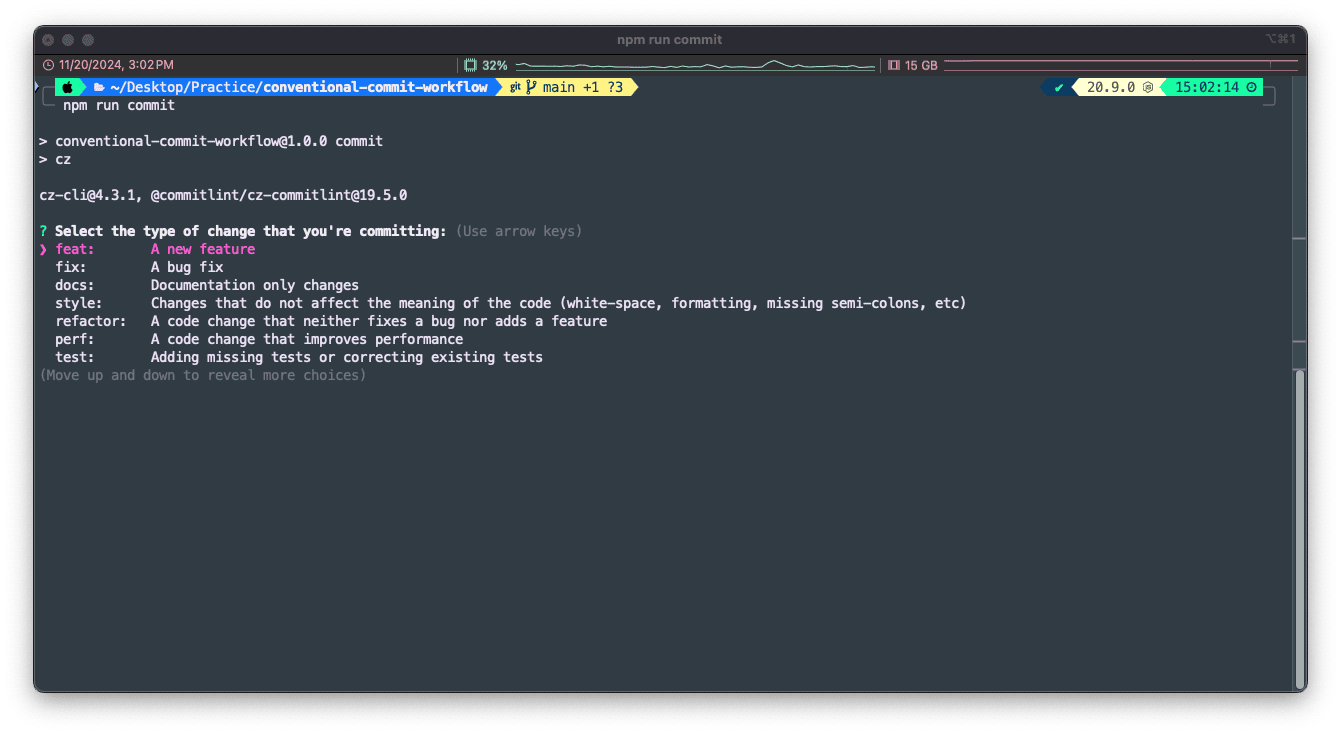
Start the interactive prompt with:
npm run commit -
Here's the prompt interface:
-
With Gitmoji: cz-customizable
-
Install the dependencies:
npm install --save-dev commitizen cz-customizable -
Create a configuration file in the root directory:
.cz-config.js
module.exports = {
    types: [
    { value: ":sparkles: feat", name: "✨ feat: New feature" },
    { value: ":bug: fix", name: "🐛 fix: Bug fix" },
    { value: ":memo: docs", name: "📝 docs: Documentation changes" },
    {
        value: ":art: style",
        name: "🎨 style: Code style changes (formatting, white spaces, missing semicolons, etc.)",
    },
    {
        value: ":recycle: refactor",
        name: "♻️  refactor: Code refactoring (neither a fix nor a feature addition)",
    },
    { value: ":zap: perf", name: "⚡️ perf: Performance improvement changes" },
    { value: ":white_check_mark: test", name: "✅ test: Adding or updating tests" },
    {
        value: ":package: build",
        name: "📦️ build: Changes that affect the build system or external dependencies (e.g., gulp, npm)",
    },
    {
        value: ":construction_worker: ci",
        name: "👷 ci: Changes to CI configuration files and scripts (e.g., Jenkins, Travis, Circle, GitHub Actions)",
    },
    {
        value: ":wrench: chore",
        name: "🔧 chore: Other changes that don't modify src or test files",
    },
    { value: ":rewind: revert", name: "⏪️ revert: Revert a previous commit" },
    ],
    scopes: [
    { name: "ui" },
    { name: "backend" },
    { name: "api" },
    { name: "docs" },
    { name: "tests" },
    ],
    messages: {
    type: "Select the type of change you are committing:",
    scope: "Select the scope of this change (optional):",
    subject: "Write a short description of the change (required):",
    body: "Provide a longer description of the change (optional):",
    breaking: "Does this commit include a breaking change? If yes, provide details (optional):",
    footer: "List any issues related to this change, e.g., #31, #34 (optional):",
    confirmCommit: "Are you sure you want to commit the above?",
    },
    askForBreakingChangeFirst: true,
    allowBreakingChanges: ["feat", "fix"],
    allowCustomScopes: true,
    subjectLimit: 100,
};
-
Configure Commitizen:
-
Add the following to
package.json:{"scripts": {"commit": "cz"},"config": {"commitizen": {"path": "cz-customizable"}}}
-
-
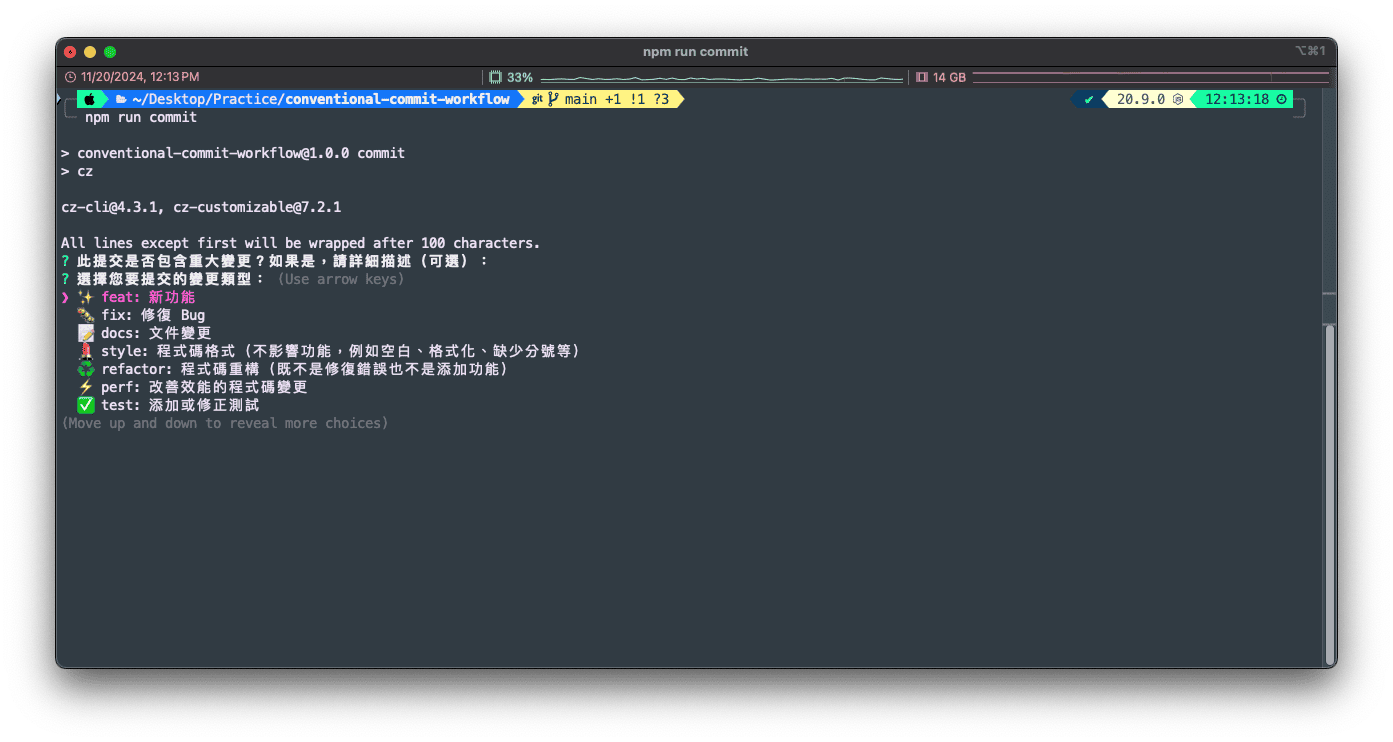
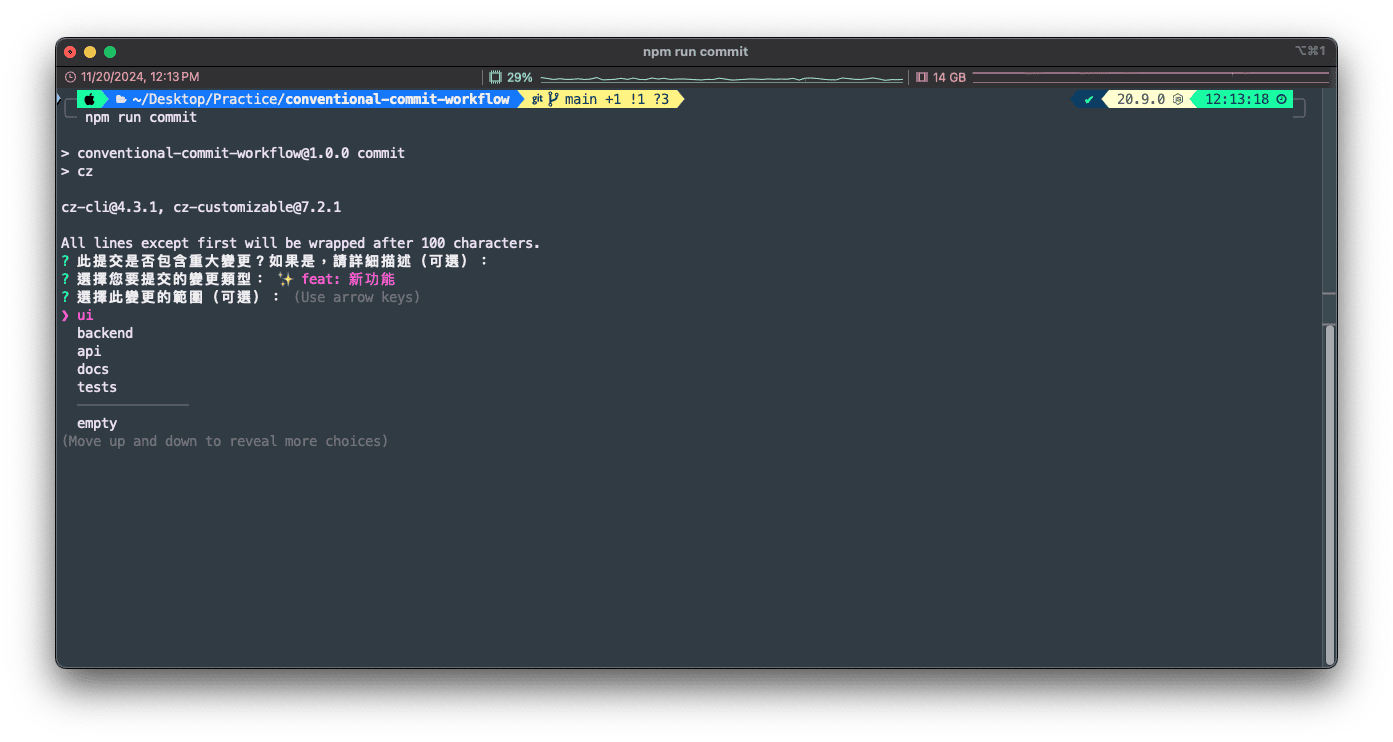
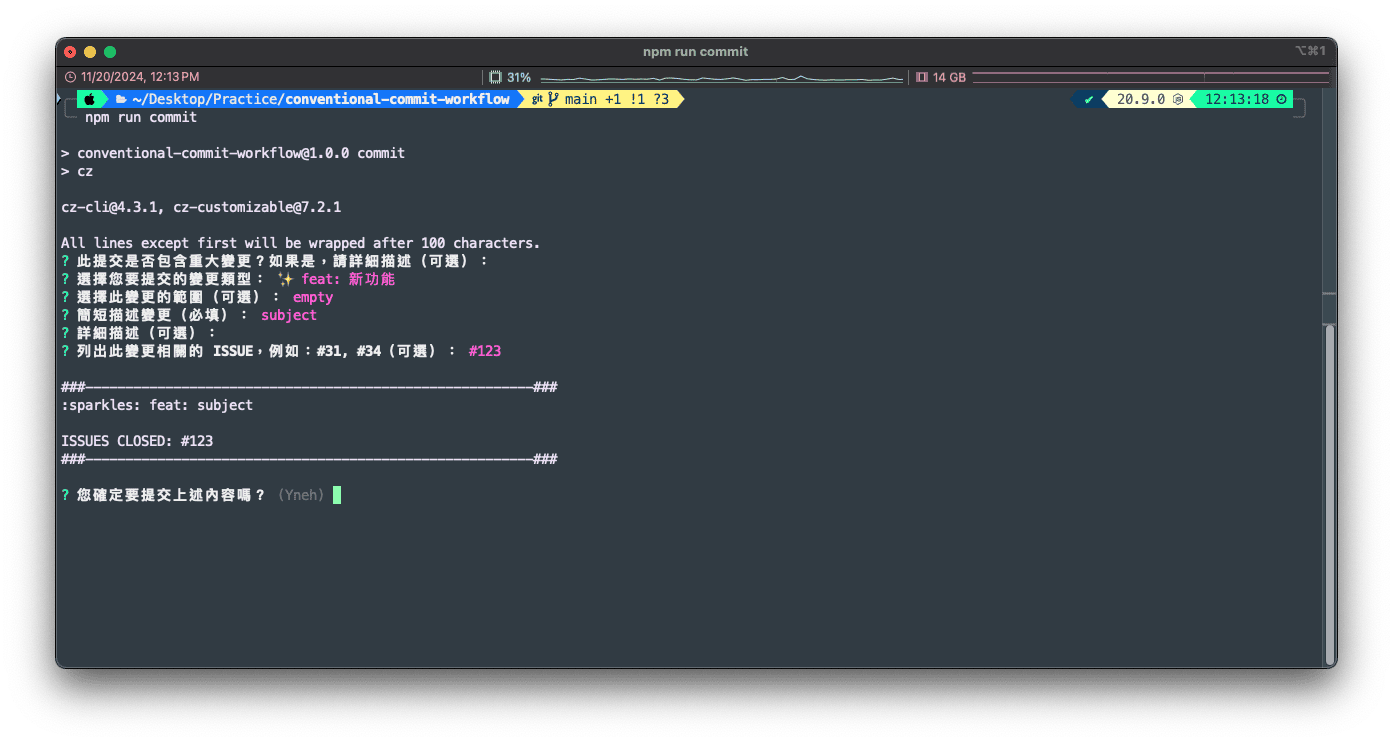
Try it out:
-
Start the interactive prompt with:
npm run commit -
Here's the prompt interface:
-
Wrapping Up: A Foundation for the Rest of the Workflow
We've installed and configured Commitizen, and walked through the tool choices and setup both with and without Gitmoji. These settings do more than make commit messages look nice or consistent. They also prepare the commit history for automation: generating a changelog, and eventually integrating CI/CD tools to improve the workflow further.
If your project needs something different, adjust the tools and settings to suit it. In the next post, I'll cover checking commit messages automatically with Husky to make sure they follow the convention. I hope this setup makes your workflow a little more efficient, and a bit more fun!